
Epson Document Capture Pro on macOS Sequoia (15) & Sonoma: Driver Permissions & Full Disk Access
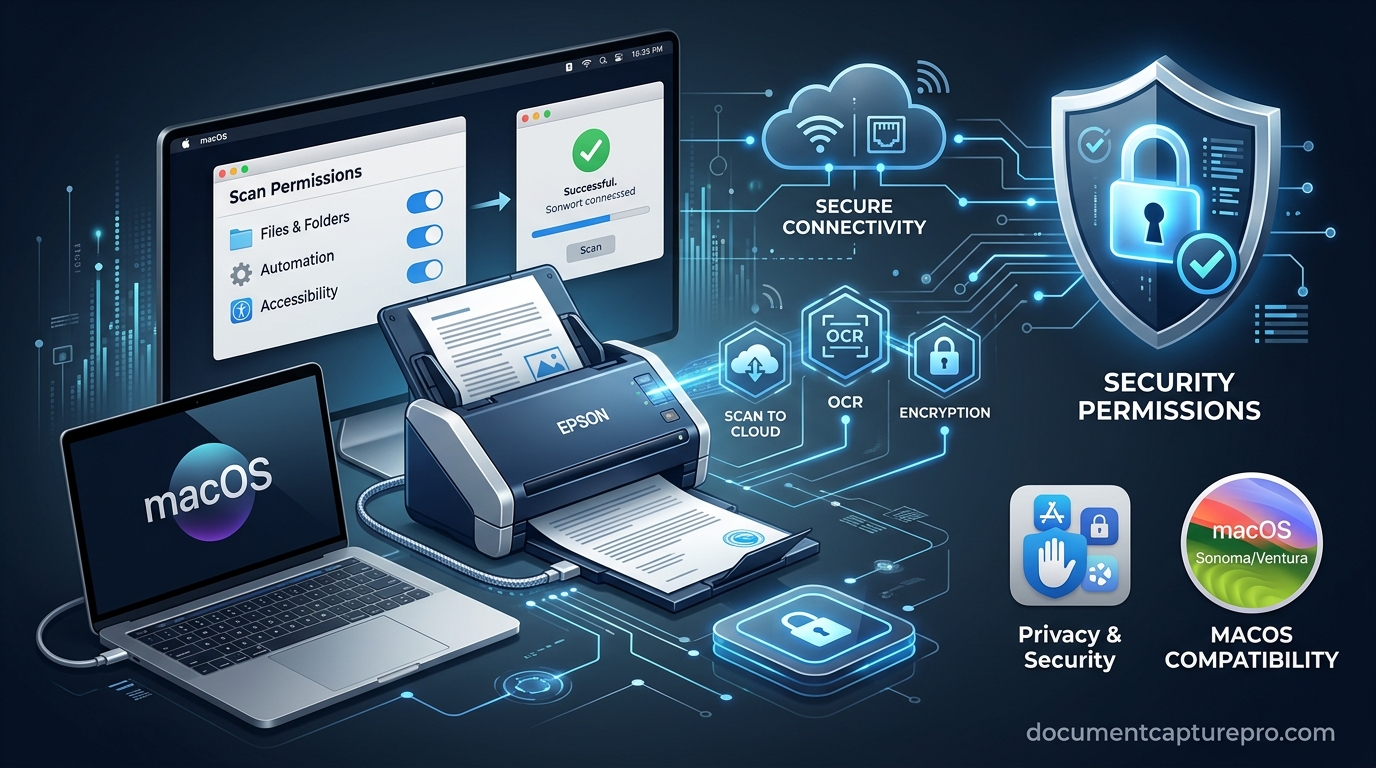
With the release of macOS 15 Sequoia and macOS 14 Sonoma, Apple significantly intensified its privacy framework (Transparency, Consent, and Control - TCC). As a consequence, many users installing Epson Document Capture report that their scanner is not visible, network broadcast discovery is blocked, or scans fail to save to disk.
This guide provides the definitive configuration checklist to ensure seamless scanning operation on Apple Silicon Macs (M1, M2, M3, M4) running the latest macOS builds.
1. Installing the macOS Universal Package
First, ensure you have the latest notarized release from our macOS download section (Document Capture v1.7.51 or v2.2.0).
- Double-click the downloaded
DC_1.7.51.dmgfile to mount the virtual disk image. - Run the installer package. When macOS prompts with "Installer wants to make changes", authenticate with Touch ID or your macOS administrator password.
- Reboot your Mac if prompted to register the background daemon.
2. Granting Critical Privacy & Security Permissions
Apple macOS blocks background communication unless explicit permissions are granted inside System Settings:
A. Local Network Access (Vital for Wi-Fi & Ethernet Scanners)
In macOS Sequoia, apps cannot scan your subnet without consent:
- Open System Settings > Privacy & Security > Local Network.
- Locate Document Capture and Epson Scanner Monitor.
- Toggle both switches to ON (green).
B. Full Disk Access & Files and Folders
To allow Document Capture to write output PDFs to your Documents, Desktop, or external thunderbolt drives:
- In Privacy & Security, click Full Disk Access.
- Click the + button, navigate to
/Applications/Epson Software/, and add Document Capture. - Similarly, inspect Files and Folders to confirm permission for Removable Volumes and Network Volumes.
softwareupdate --install-rosetta.
Download macOS Document Capture
Get the notarized, virus-checked DMG package verified for macOS Sequoia and Sonoma.
Download macOS DMG