
How to Fix Epson Document Capture Pro Scanner Communication Error (Code E-01 & Network Timeout)
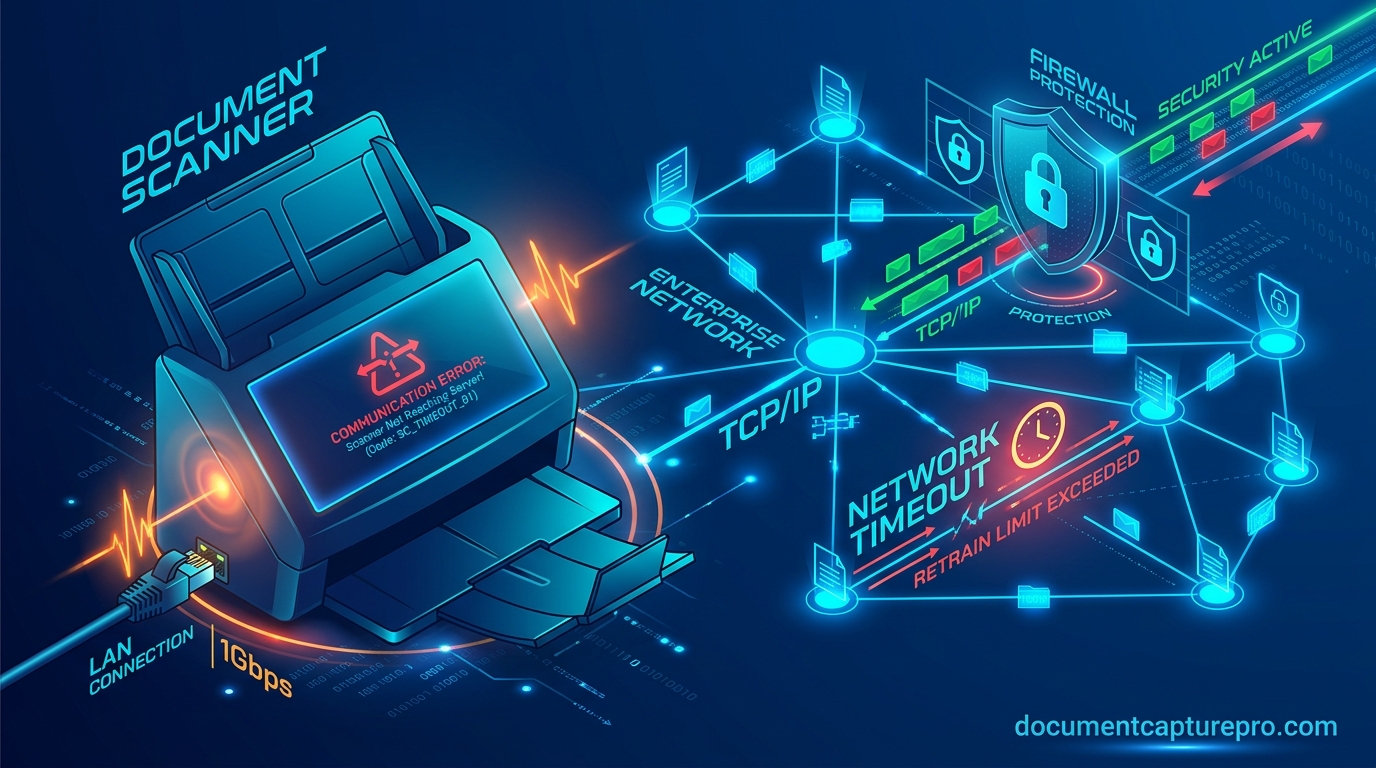
One of the most persistent issues encountered by IT managers and office staff is the dreaded notification: "Cannot communicate with the scanner. Make sure the scanner is turned on, properly connected, and there are no errors." or error code E-01 / W-01.
Because Document Capture Pro is an orchestration layer that relies on the low-level Epson Scan 2 hardware driver, communication failures can stem from driver desynchronization, Windows Defender firewall blocks, DHCP IP address changes, or USB controller sleeping. Follow this systematic diagnostic sequence to restore stable connectivity.
Diagnostic Method 1: Verify Driver Pre-requisites
Document Capture Pro does not scan directly; it queries the Epson Scan 2 TWAIN/WIA service.
- Close Document Capture Pro completely.
- Search your Windows Start menu for Epson Scan 2 Utility and run it.
- If Epson Scan 2 fails to launch or displays a driver missing error, you must re-install the core driver package from our Other Software section before attempting to run Document Capture Pro.
Diagnostic Method 2: Configure Fixed IP Address via Epson NetConfig
When your scanner is connected over Ethernet or Wi-Fi, routers using dynamic DHCP can assign a new IP address to the scanner after a reboot, breaking Document Capture Pro's saved socket.
- Download and launch Epson NetConfig.
- Locate your scanner in the device table and note its MAC address and IP address.
- Assign a Static IP Address outside your router's dynamic DHCP pool, or bind the scanner's MAC address in your router's DHCP reservation table.
- In Epson Scan 2 Utility, click Add under Network Scanner Address, enter the static IP, and click Test Connection.
Diagnostic Method 3: Firewall Ports & Windows Defender Rules
Network scanning protocols utilize specific UDP and TCP ports that corporate firewalls or third-party endpoint security (e.g., CrowdStrike, Symantec, Bitdefender) often flag as unauthorized broadcast traffic.
Required Inbound Network Ports:
- UDP Port 161 (SNMP): Used by Epson Scan 2 and NetConfig to query device readiness and paper jam status.
- TCP Port 2968 & 1865: Used for binary scan image transport and job control.
- UDP Port 3289 (ENPC): Epson Network Peripheral Control broadcast.
Diagnostic Method 4: USB Power Management & Hub Bypassing
If your scanner is connected via USB:
- Direct Motherboard Port: Disconnect the scanner from unpowered desktop USB splitters or monitor pass-through hubs and plug directly into a rear USB 3.0 port on the PC chassis.
- Disable USB Selective Suspend: Open Windows Control Panel > Power Options > Change Plan Settings > Change advanced power settings > USB Settings > set USB selective suspend setting to Disabled.
Need Clean Driver Installers?
Download clean, authenticated installation binaries for Document Capture Pro and companion utilities.
Download Document Capture Pro